
Personality API MCP server
Crystal’s MCP server for Claude, ChatGPT, and Copilot.
The Personality API, as tools for builders, researchers, and AI agents. Once connected, it resolves anyone by email or LinkedIn URL, pulls their validated DISC profile and selling playbook, rewrites a draft for that reader, and preps you for a meeting, all as tools it calls mid-task.
Pick your client
Five ways in, one server.
Every client talks to the same server at https://api.crystalknows.com/_mcp. What changes is how you authenticate. Choose your client and jump to its steps. It is the same data as the Personality API, exposed as tools instead of endpoints.
- 2 min
Claude Code
RecommendedOfficial plugin. Two commands, sign-in opens in your browser.
- 5 min
Claude.ai and Claude Desktop
Custom connector using a Claude connection from the data dashboard.
- 5 min
ChatGPT
Custom connector in Developer mode, plus one callback URL to register.
- 10 min
Microsoft Copilot
Copilot Studio connector with the OAuth URLs from your connection.
- 1 min
Cursor, agent frameworks, custom clients
Token URL with an API key. No OAuth flow required.
Setup
Connect Crystal to your MCP client
Claude Code is two commands. Claude, ChatGPT, and Copilot each take one OAuth connection. Anything else uses a token URL.
- 1
Claude Code: install the plugin
RecommendedCrystal publishes an official open-source Claude Code plugin. No OAuth client to create and no key to paste: it registers with the MCP server the first time you use it and opens a sign-in in your browser. It also ships two skills,
premeeting(DISC-tailored call prep, pulling attendees from your calendar) andtranscript-analysis(a personality-grounded call debrief)./plugin marketplace add crystal-project-inc/crystal-knows-plugin /plugin install crystal-knows@crystal-knows-marketplaceOr run
/plugin, open Discover, and pick Crystal Knows. Rolling it out to a team? Create a Claude connection on the data dashboard and pin its client ID in the plugin’s.mcp.json:View the plugin source{ "mcpServers": { "crystal": { "type": "http", "url": "https://api.crystalknows.com/_mcp", "oauth": { "clientId": "your-client-id", "callbackPort": 8080, "scopes": "" } } } } - 2
Every other client: create a connection
Sign in at data.crystalknows.com/mcp and create a connection for the client you are using: Claude, ChatGPT, or Microsoft Copilot. Each connection has its own client ID and secret, plus the authorization, token, and refresh URLs some clients ask for. Save the secret somewhere safe; it is only shown once. Clients that cannot run OAuth (Cursor, custom tooling) skip this step and use an API key instead; see step 7.
- 3
Point your client at the server
Every client uses the same server URL. Choose OAuth as the auth method and enter the client ID and secret from the connection you created in step 2. Client-specific walkthroughs follow.
MCP server URL
https://api.crystalknows.com/_mcpNo scopes are used. Claude’s callback URL is pre-registered; ChatGPT and Copilot show you one during setup that you register on the connection.
- 4
Claude.ai and Claude Desktop
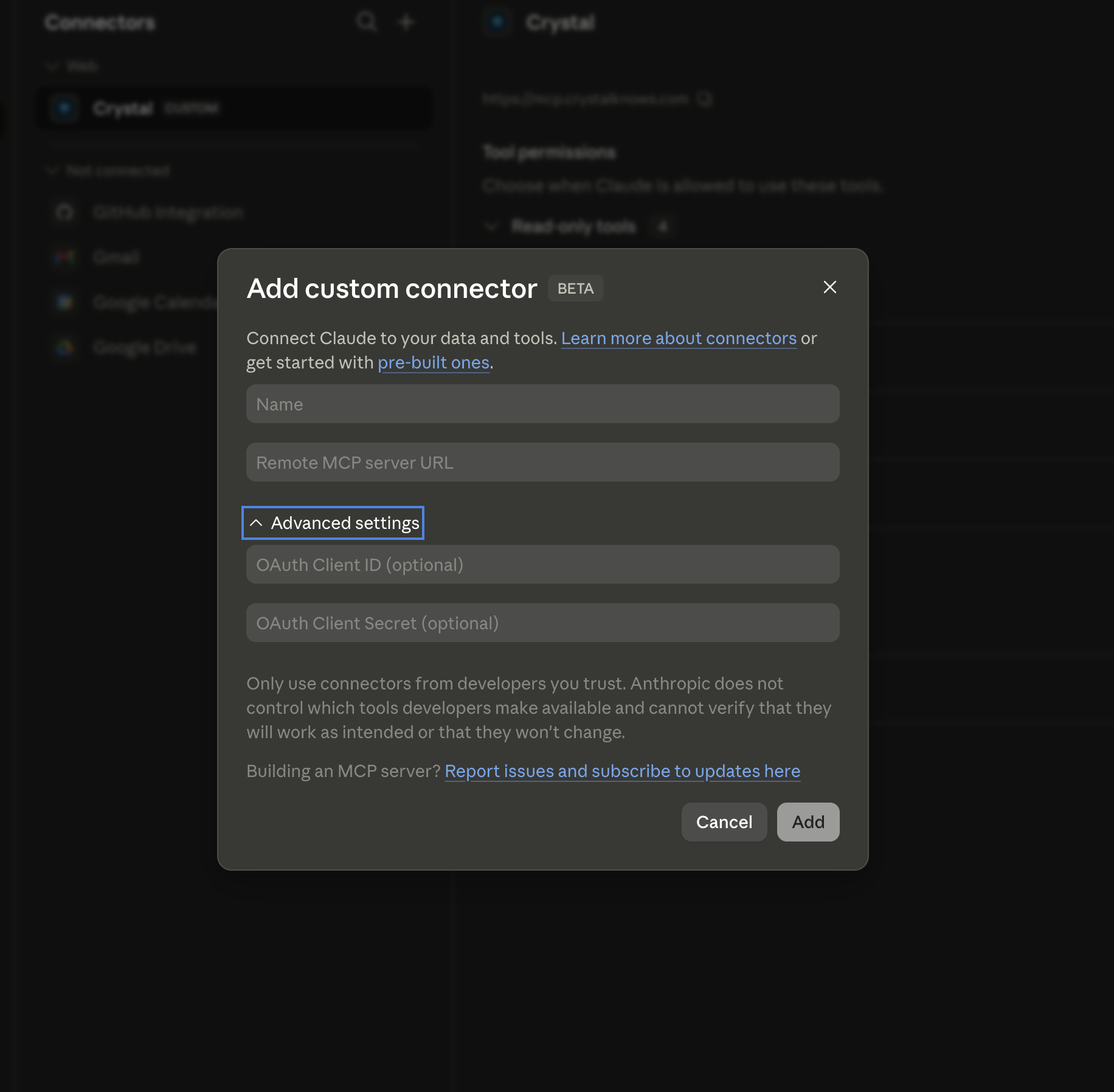
Claude supports custom MCP connectors directly from its settings. To add Crystal:
- 1.On the data dashboard MCP page, create a Claude connection and copy its client ID and secret. Then in Claude, go to Settings → Connectors → Add custom connector.
- 2.Set the Name to Crystal and the Remote MCP server URL to
https://api.crystalknows.com/_mcp. - 3.Expand Advanced settings and paste the OAuth Client ID and OAuth Client Secret from your Claude connection.
- 4.Click Add, then connect and complete the Crystal OAuth flow when prompted. Claude’s callback URL is already registered on Crystal’s side.
- 5
ChatGPT
Developer mode required
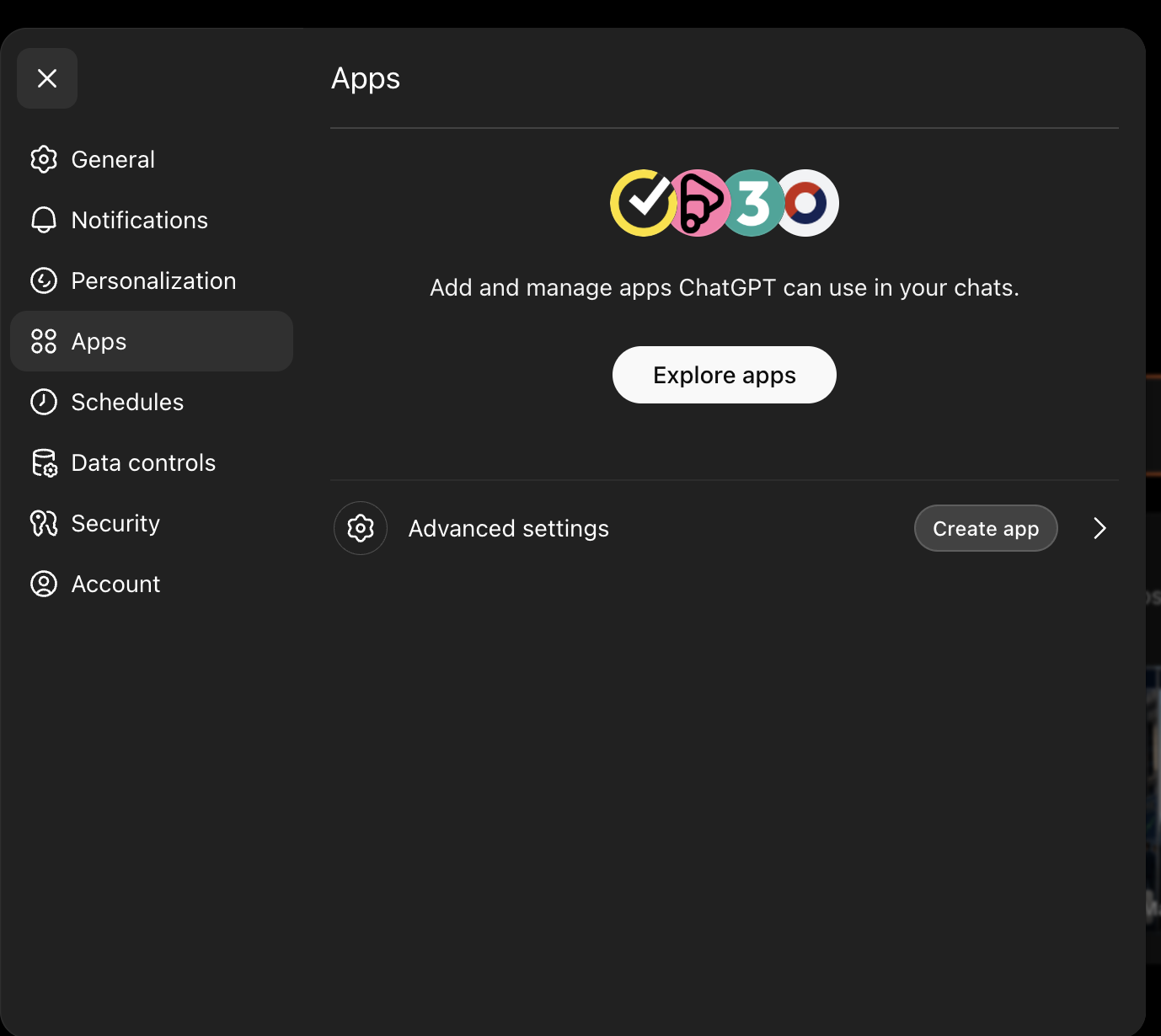
ChatGPT only allows custom MCP connectors when Developer mode is enabled. Turn it on in Settings → Connectors → Advanced before continuing.
- 1.In ChatGPT, open Settings → Connectors and click Create (or Add custom connector) under the Developer mode section.
- 2.Set the Name to Crystal and the MCP server URL to
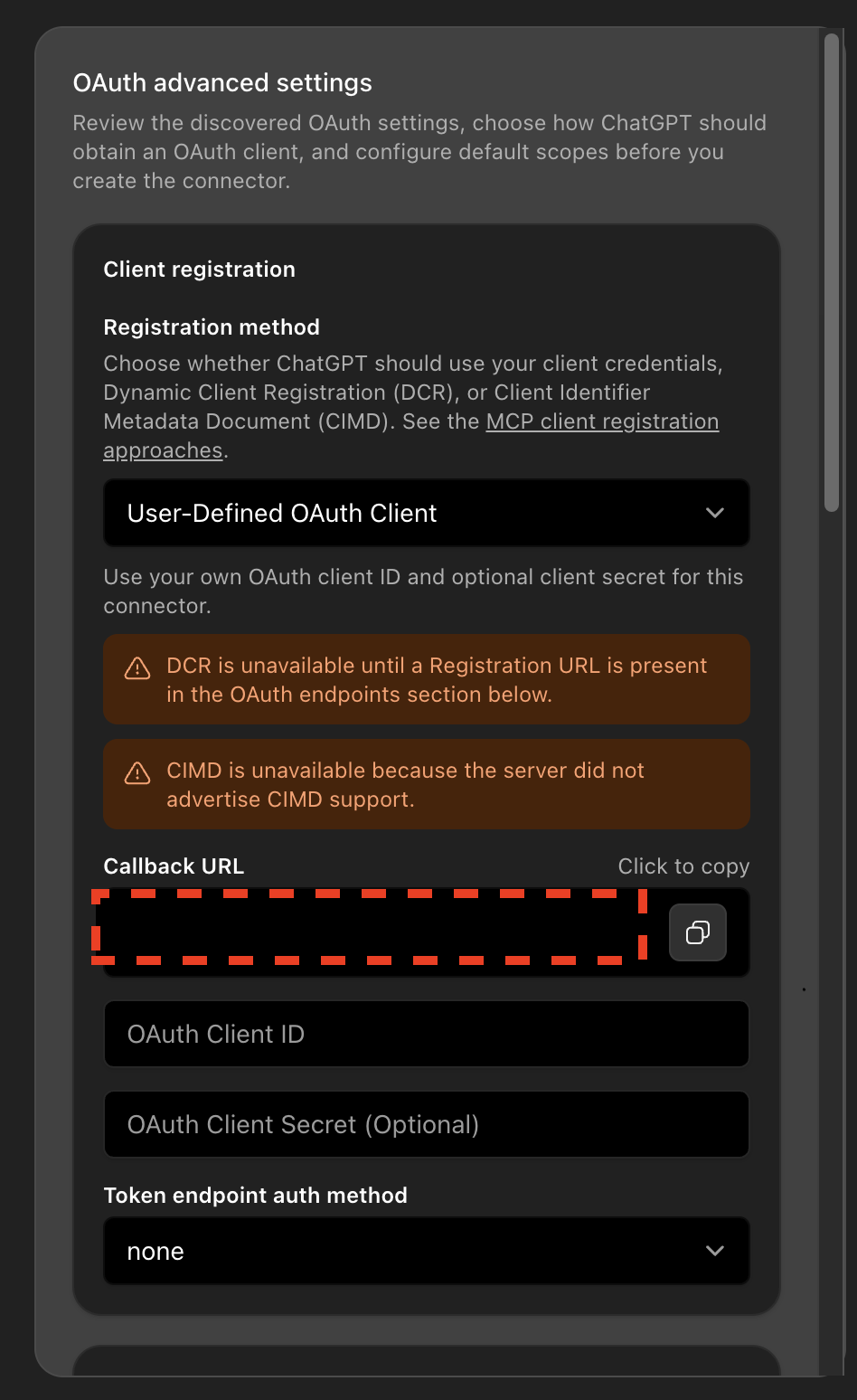
https://api.crystalknows.com/_mcp. - 3.Choose OAuth as the authentication method. Under Advanced OAuth Settings, select User-Defined OAuth Client, then paste the client ID and client secret from the ChatGPT connection you created on the data dashboard.
- 4.Copy the callback URL that ChatGPT shows you, then register it on your ChatGPT connection on the data dashboard MCP page and save.
- 5.Save the connector in ChatGPT, then connect and complete the Crystal OAuth flow when prompted.
- 6
Microsoft Copilot
- 1.Create a Microsoft Copilot connection on the data dashboard MCP page.
- 2.In Copilot Studio’s connector settings, add a new MCP connector with the server URL
https://api.crystalknows.com/_mcp, then paste the client ID and secret plus the authorization, token, and refresh URLs and scope shown on your connection. - 3.Copy the callback URL Copilot shows and register it on your Copilot connection on the data dashboard.
- 4.Save, then connect and complete the Crystal sign-in when prompted.
- 7
Cursor, agent frameworks, and other clients
For clients that cannot complete an OAuth flow, create an API key at data.crystalknows.com/api-keys and embed it in the server URL:
https://api.crystalknows.com/_mcp/tkn/<your-api-key>Treat that URL like a credential. Anyone with it can call the MCP server as you, so keep it out of shared configs and rotate the key if it leaks.
- 8
Verify it’s working
To confirm the integration is active:
- 1.Complete the OAuth flow in your MCP client (sign in with Crystal when prompted).
- 2.Check that your client lists the Personality API MCP tools (search, fetch, selling_to, revise_email, and so on).
- 3.Try one: ask for your own profile (get_myself), or search for a colleague by email, and confirm you get a response.
Reference
13 tools, four jobs.
The same tools show up in every client. Profiles are DISC-based. When a search result suggests a next tool (for example selling_to before drafting a pitch), the assistant is expected to call it. Click a tool name to copy it.
Resolve people
searchSearch for a profileFind a person’s Crystal profile by email or LinkedIn URL and get their validated DISC type, archetype, and communication tips. Name-only queries search profiles that already exist.
Parameters: query (email, LinkedIn URL, or name), optional tags
multi_searchResolve several people at onceBatched search: pass up to 25 emails and/or LinkedIn URLs and get a results array plus a failed array for the ones that did not resolve.
Parameters: inputs (list of emails or LinkedIn URLs, max 25)
fetchFetch a profile by IDGet a full Crystal profile by Crystal Profile ID (use after search).
Parameters: id
Guide the conversation
selling_toSelling-to playbookThe full sales and persuasion playbook for a resolved profile: build rapport, gather information, discuss pricing, negotiate, next steps, motivators, and what to avoid.
Parameters: id
generate_promptPersonality-tuned promptA ready-to-paste, DISC-tuned prompt for communicating with a specific person, for use in your own model or agent. Identify the person by profile ID, by raw DISC type when no profile exists, or set self for guidance about you. Free; no credit spent.
Parameters: id or disc_type or self, optional objective
revise_emailRevise an emailRewrite a draft email so it lands with the recipient’s DISC type. Returns the revised email plus a summary of what changed.
Parameters: email, id or disc_type
Meetings and calls
get_myselfFetch my Personality ProfileInformation to aid in communications to/from the current user and their coworkers
Parameters: none
get_upcoming_meetingsGet Upcoming MeetingsList upcoming meetings and provide group communication guidance using attendees’ personalities
Parameters: none
analyze_call_transcriptAnalyze a call transcriptResolve every participant’s DISC type and return the traits, citation scheme, and analysis framework for a what-went-well / what-to-change debrief grounded in the transcript.
Parameters: transcript, participants (name + email or LinkedIn URL, max 25)
assign_disc_typesAssign DISC types to a groupOpen an interactive table to set or correct DISC types for several people at once. Conversation-scoped; never written back to Crystal.
Parameters: people (names, or name + email + disc_type, max 50)
Organize
all_profile_tagsAll Profile TagsLists all valid profile tags that have been used in the past
Parameters: none
add_profile_tagsAdd Profile TagsAdd tags to a profile for segmentation (e.g. prospect, customer, engineering)
Parameters: id, tags (comma-separated)
remove_profile_tagsRemove Profile TagsRemove tags from a profile
Parameters: id, tags (comma-separated)
In practice
What people ask once it’s connected
Each row chains a few tools end-to-end. Try the prompts in your own client.
Meeting prep
Pull upcoming meetings, look up each attendee, and get tailored talking points before you walk in.
- “Prep me for my 2pm tomorrow”
- “How should I open the discussion with everyone in my next leadership sync?”
Cold outreach drafting
Look up a prospect by email or LinkedIn and draft an opener that matches their communication style.
- “Draft a cold email to [email protected], in her style”
- “Write a LinkedIn note to [profile URL] introducing our product”
Difficult conversations
Get a personality-aware approach for tough feedback, declining requests, or pushing back.
- “I need to tell Brandon his proposal won’t work: how should I frame it?”
- “Help me decline a meeting request from a high-D colleague without burning the relationship”
Negotiation strategy
Use someone’s DISC profile and selling-to playbook to anticipate their negotiating style and prepare counter-moves.
- “I’m negotiating renewal with this customer. What should I expect from her?”
- “How do I close this deal with a Cs buyer?”
New hire onboarding
Build a “how to work with me” doc, or help managers understand a new report’s style fast.
- “Summarize my profile as a one-pager I can share with my new team”
- “How should I run 1:1s with my new hire [email]?”
Team dynamics & retros
Map a team’s personality mix to spot collaboration gaps or facilitation needs.
- “Look up everyone tagged “engineering” and tell me what styles I should plan for in our offsite”
- “Who on my team is most likely to clash with a high-D stakeholder?”
Customer segmentation with tags
Tag profiles by deal stage, persona, or account, then pull cohorts later.
- “Tag everyone I met this week as “q2-pipeline””
- “Show me everyone tagged “champion” across my accounts”
Personalized follow-ups
After a call or email exchange, draft a follow-up that matches the other person’s pace, detail level, and formality.
- “Write a follow-up to Brian after our discovery call”
- “Summarize next steps for [email protected] in her preferred style”
Pre-interview research
Look up a candidate before the interview and adjust your questioning approach.
- “I’m interviewing [LinkedIn URL] tomorrow. How should I run the conversation?”
Self-awareness check-ins
Periodically revisit your own profile to spot blind spots before high-stakes situations.
- “Remind me of my blind spots before I go into this board meeting”
- “What drains me? Am I about to walk into one of those situations?”
Troubleshooting
Common issues
Stuck on something not listed? Email [email protected] with the client name and the error you see, or check the API reference.
OAuth fails or "redirect_uri_mismatch"
Claude’s callback URL is pre-registered. ChatGPT and Copilot show you a callback URL during setup; register it on the matching connection on the data dashboard MCP page. For any other client, add its callback URL there too.
Invalid client ID or secret
Double-check that you pasted the client ID and client secret with no extra spaces, and that you are using the connection created for that client (a ChatGPT secret will not work in Claude). If you lost a secret, rotate it on the data dashboard.
ChatGPT doesn’t show a "Create custom connector" option
Custom connectors are only available with Developer mode enabled. Turn it on under Settings → Connectors → Advanced and reload the page.
Client does not support OAuth2 for MCP
Use the token URL instead: embed an API key from the data dashboard directly in the server URL (https://api.crystalknows.com/_mcp/tkn/<your-api-key>). Treat that URL like a password; anyone holding it can call the server as you.
Tools don’t appear after connecting
Restart your MCP client after adding the server and completing the OAuth flow. If the client caches tool lists, trigger a refresh or reconnect.
Claude Code plugin asks me to sign in every session
The plugin uses dynamic OAuth registration by default. For a team rollout, create a Claude connection on the data dashboard and pin its client ID in the plugin’s .mcp.json so every machine shares one registered client.
Give your AI assistant people skills.
One connection puts validated DISC profiles, selling playbooks, and adaptive rewrites inside Claude, ChatGPT, Copilot, or any MCP client. Building software instead? The same data is the Personality API over REST.