
Integration
Crystal + HubSpot
Crystal integrates directly with HubSpot to give your team personality insights right where they work. This guide walks you through installation and setup.
Overview
What this integration does
The Crystal integration is Personality API enrichment for your CRM. It adds personality insights and communication tips directly to your HubSpot contact records. Your sales, customer success, and recruiting teams can quickly understand how to communicate more effectively with each contact, without leaving HubSpot.
Before you begin
Prerequisites
Before you begin, make sure you have:
- HubSpot permissions to install apps from the HubSpot App Marketplace
- A Crystal account with Personality API CRM enrichment enabled (contact sales to set it up)
Step 1
Install the app
- 1
Go to the HubSpot App Marketplace
- 2
Search for Crystal Knows
- 3
Click on the Crystal Knows app listing
- 4
Click Install app
- 5
Select the HubSpot account you want to connect
- 6
Click Install app to confirm
Step 2
Connect your HubSpot account
After installation, you’ll be prompted to authorize the connection between Crystal and HubSpot.
When you authorize:
- Crystal reads basic contact information (like name, email, and company) to match contacts with personality profiles
- Crystal writes personality data to custom contact properties in HubSpot
This uses HubSpot’s secure OAuth connection, there are no API keys to manage or copy. Click Authorize to complete the connection.
View required HubSpot scopes
Crystal requests the following OAuth scopes:
crm.objects.contacts.readRead contact recordscrm.objects.contacts.writeWrite to contact recordscrm.schemas.contacts.readRead contact property definitionsoauthBasic OAuth authentication
Step 3
Configure matching and fields
Once connected, you’ll need to set up the fields you want Crystal to populate in HubSpot.
Crystal Fields
Crystal can populate custom contact properties in HubSpot with personality data. Choose which fields you want to use:
- DISC profile: DISC type, archetype, overview, intensity, and percentage scores (D, I, S, C)
- Behavioral traits: Dominance, social style, risk aversion, skepticism, pragmatism, pace, expressiveness, leniency, and more
- Communication tips: First impression, following up, negotiating, discussing pricing, product demo, building trust, and driving action
- Personality insights: Qualities, strengths, energizers, drainers, and blind spots
- Profile link: A link to the full Crystal profile
Creating fields in HubSpot
You’ll need to create the contact properties in HubSpot before Crystal can populate them. Fields marked as “Missing” in the configuration screen haven’t been created yet. To add a field:
- Go to Settings → Properties in HubSpot
- Create a new contact property with the exact name from the list below
- Click Refetch schema in Crystal to detect the new field
Once a field exists in HubSpot, Crystal can read and write to it. Only create the fields you want to use.
Field names reference
Use these exact field names and types when creating properties in HubSpot. Click any field name to select it for copying.
Required Control Field
| Field Name | Type |
|---|---|
use_crystalSet to Yes to trigger enrichment. Default to No so new contacts aren’t enriched automatically. | Single checkbox |
DISC Profile(percentages are 0-100)
| Field Name | Type |
|---|---|
crystalknows_disctype | Single-line text |
crystalknows_archetype | Single-line text |
crystalknows_overview | Multi-line text |
crystalknows_disc_intensity | Single-line text |
crystalknows_percentage_d | Number |
crystalknows_percentage_i | Number |
crystalknows_percentage_s | Number |
crystalknows_percentage_c | Number |
crystalknows_profile_url | Single-line text |
crystalknows_discmap_url | Single-line text |
Behavioral Traits(0-100 scale)
| Field Name | Type |
|---|---|
crystalknows_traits_dominance | Number |
crystalknows_traits_social | Number |
crystalknows_traits_pace | Number |
crystalknows_traits_expressiveness | Number |
crystalknows_traits_risk_aversion | Number |
crystalknows_traits_skepticism | Number |
crystalknows_traits_pragmatism | Number |
crystalknows_traits_leniency | Number |
Communication Tips
| Field Name | Type |
|---|---|
crystalknows_first_impression | Multi-line text |
crystalknows_following_up | Multi-line text |
crystalknows_building_trust | Multi-line text |
crystalknows_negotiating | Multi-line text |
crystalknows_discussing_pricing | Multi-line text |
crystalknows_product_demo | Multi-line text |
crystalknows_driving_action | Multi-line text |
Personality Insights
| Field Name | Type |
|---|---|
crystalknows_qualities | Multi-line text |
crystalknows_strengths | Multi-line text |
crystalknows_blindspots | Multi-line text |
crystalknows_energizers | Multi-line text |
crystalknows_drainers | Multi-line text |
LinkedIn URL Field (recommended)
Mapping a LinkedIn URL field improves how accurately Crystal matches contacts to personality profiles.
- Select the HubSpot contact property that contains LinkedIn profile URLs
- This is optional, contacts can still be matched by email if no LinkedIn URL is available
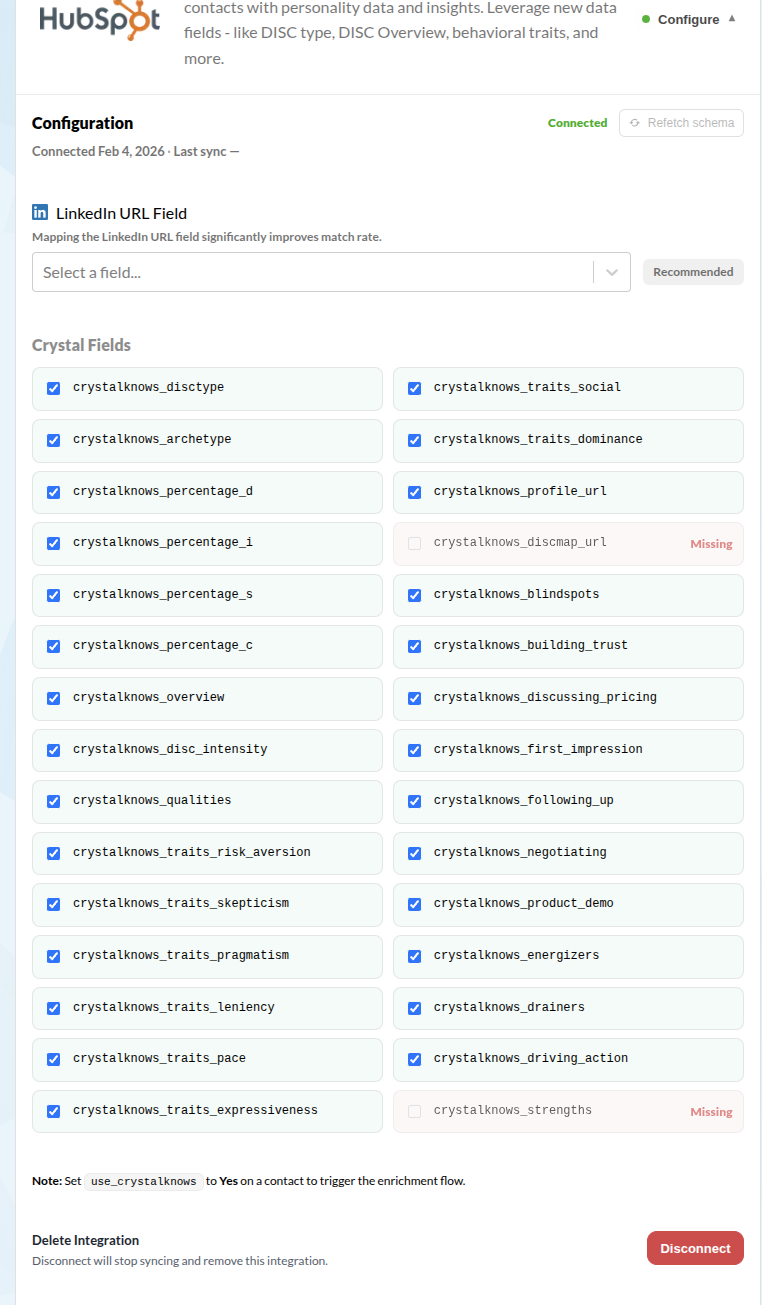
The configuration screen shows which fields exist (checked) and which are missing in your HubSpot account.
Triggering enrichment
Crystal enriches a contact when the HubSpot contact property use_crystal is set to Yes. When creating the property in HubSpot, set the default to No so every new contact isn’t enriched automatically.
This gives your team control over which contacts get enriched. You can set it manually on individual contacts, or use a HubSpot workflow to set it to Yes when it makes sense for your process.
Workflow examples
- Contact lifecycle stage becomes Sales Qualified Lead → set
use_crystalto Yes - Contact is added to a specific list (e.g., “Active Opportunities”) → set
use_crystalto Yes - Contact is associated with a deal in a certain stage → set
use_crystalto Yes
Refetch schema
After creating new properties in HubSpot, click Refetch schema to sync and detect the newly available fields. Crystal will then show them as available instead of “Missing”.
Step 4
Verify it’s working
To confirm the integration is active:
- 1
Open a HubSpot contact record
- 2
Look for Crystal fields in the contact properties (e.g., DISC Type, Communication Tips)
- 3
If personality data appears, you’re all set!
Note: Crystal can only provide personality data for contacts that exist in our dataset. Not every contact will have a match, this is normal. Match rates improve when LinkedIn URLs are available.
If nothing appears:
- Confirm the contact’s
use_crystalproperty is set to Yes - Check that a LinkedIn URL is mapped (if available for that contact)
- Try another contact who is more likely to be in our dataset (e.g., someone with a public LinkedIn profile)
- Allow a few minutes for enrichment to complete
Common issues
Troubleshooting
No Crystal fields visible on the contact
Make sure the use_crystal property is set to Yes for that contact. Fields only appear after enrichment runs.
use_crystal property missing or not set
This property is created automatically. If it’s missing, try disconnecting and reconnecting the integration. Set it to Yes for any contact you want Crystal to enrich.
LinkedIn URL field not mapped
Without a LinkedIn URL, Crystal matches by email only. For better match rates, map your LinkedIn URL property in the configuration settings.
Some fields show as “Missing” in the config
You need to create these properties in HubSpot first (Settings → Properties). Use the exact field name shown, then click Refetch schema in Crystal to detect them.
Connected but “Last sync” not updating
Check that at least one contact has use_crystal set to Yes. If the issue persists, try disconnecting and reconnecting.
Wrong HubSpot portal selected
If you have multiple HubSpot accounts, make sure you authorized the correct one during setup. You can disconnect and reinstall to choose a different portal.
Managing the integration
Uninstall / disconnect
To stop the integration:
- 1
Go to your Crystal integration settings
- 2
Click Disconnect
Disconnecting stops future syncing and enrichment. Any Crystal properties already added to your HubSpot contacts will remain unless you remove them manually in HubSpot.
Need help getting set up?
If you have questions or run into issues, our support team is happy to help.